


iPads, Apps and Accessibility
- Apr 27, 2017
- 5 min read

Our first class of EDUC 5163 at NSCC Waterfront was a whirlwind! It is evident that Barbara has lots to share with us in the Assistive Technology realm, and I am looking forward to learning a lot over the coming classes. If the first class was any indication, there is a lot to be mastered! While I am an iPhone/Macbook user and accustomed to the Apple platform, I am not familiar with using an iPad, or with any of the apps that we used in the first class. I was amazed by what some of them can do, and how beneficial they can be to any student. I considered myself to be technologically savvy before, but quickly figured out that I have a lot to learn. I am excited to take in what is to come!
I really enjoyed working with the Videoscribe app at the beginning of class, and the challenge of figuring out how it works. I had seen videos that must use it before, and never realized that there was an app for that! I found it difficult to match the voice recording with the pictures and words that were there, and when I use it again I will work on my timing skills. I can see a benefit to using it with any student in order to give them a different way of presenting information. If they are unwilling to get up in front of a class, it provides an alternative way to present their information. I watched a video in another course, called “Changing School Paradigms” that I had to go back and watch after using this app. It appears that Ken Robinson is using a whiteboard and marker by hand, but I am certain that Videoscribe could produce something similar. I’m excited to spend more time working with this app and coming up with some cool ideas. I think that as a teacher, you could also create your own Videoscribes that students could access via Google Classroom or Showbie at any time. Some examples I am thinking of for my students are to show the steps to working out a specific type of math problem, or animating a process we use frequently that they can refer back to, instead of having to explain it to them sometimes daily.
I was excited to learn about the Poll Everyone site. If left to my own devices, I would still be prone to going to the whiteboard in order to create a brainstorm of ideas, or using the Coggle extension on Google Chrome. In both cases, it’s me conveying the information. I LOVED how quick and interactive PollEv was. You can pose a question like this:
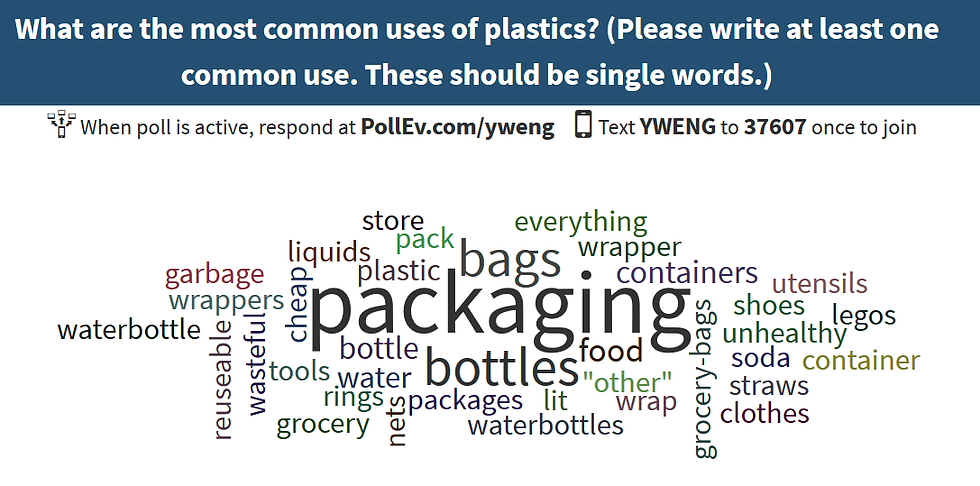
and have students popping their one word contributions up on the screen in real time. When we used our cell phones in class, I wondered if this would create a problem for my classroom, because the number of students in my room that have a phone is limited. After looking into it farther on my own time, I have realized that you are also able to join on the web, which I will be implementing with my students in the coming week. It’s a really neat way to start a conversation about any topic.
I really enjoyed getting to see what the other people in the class had done with the apps they used, and getting to play around with some of them for our upcoming assignment. Some of the ones I am most excited about are Tellegami, which allows any user to create a narrated animation, like this:
I can really see some of my students enjoying getting to use this. We have access to Chromebooks in our Career Access program, not iPads, but I do have one in my room. I want to give students a chance, in pairs or alone if they wish, to create a Tellagami and share it with me in the coming weeks. I think we could do something really cool in our Oceans class with it, where students could have some creative backgrounds and information. I showed it to a few of my students already and they are excited to work with it, as am I!
We also looked at some cool photo apps that I wasn’t aware of. Taking pictures is one of my passions, and I am excited just to have learned about some new apps to use. I really enjoyed the Word Foto app, which allows the use to incorporate relevant words into the photos, like these examples:


Type Drawing was fun to use as well. It allows the user to draw with the text, like this:

I can really see value in using apps like these, along with ones that create picture and video collages, as a fun way of representing images and information in any project.
I really valued learning about all of the Accessibility features in the settings of the iPad. On my old iPhone, I had to use one of the settings because my home button stopped working, but I had no idea how vast the range of features was. I have a student in a wheelchair that will probably need to start making use of more of these things as his mobility decreases more in coming years. For now, I can see the Touch Accommodations being useful to him, as he doesn’t have much strength in his arms as it is.
We watched a TED talk about “The Myth of Averages” that discussed how cockpits used to be designed for the “average” person, only to find that an average sized person doesn’t actually exist. Creating adjustable seats is an example of universal design, and is a great example as to why we really need to take that approach in planning for our students. There is not a single student in any classroom today that is the same as another student. There is also no “average” student. I have a wide variety of strengths and challenges in my classroom. I am excited to shift my perspective, while incorporating a more universal approach using assistive technology as a result of this course.
I am excited to familiarize myself more with what we worked on in the first class while completing the assignment, and to learn about the other platforms and what is available on them as well. Access to technology outside of school is limited for most of my students, and we have a class set of Chromebooks available for them to use. I am considered to be the “go-to” teacher for our students when someone needs help to figure something out on the Chromebook, so I am excited to learn about what is out there for our students in the coming classes!
Comments